
FAQ
Product updates, tips, and cross-border e-commerce insights.
Is CH an officially authorized service provider? Is my data safe?
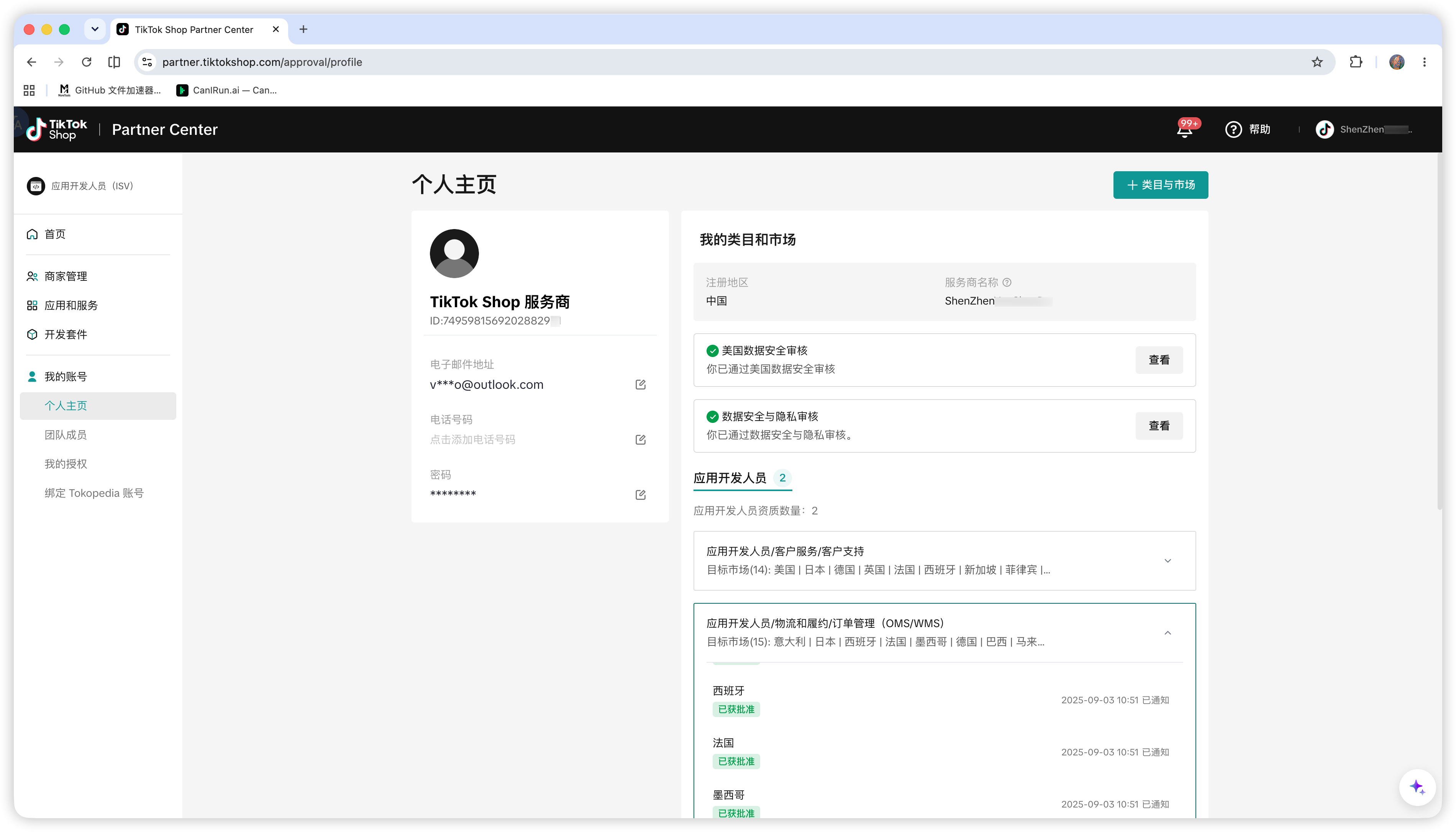
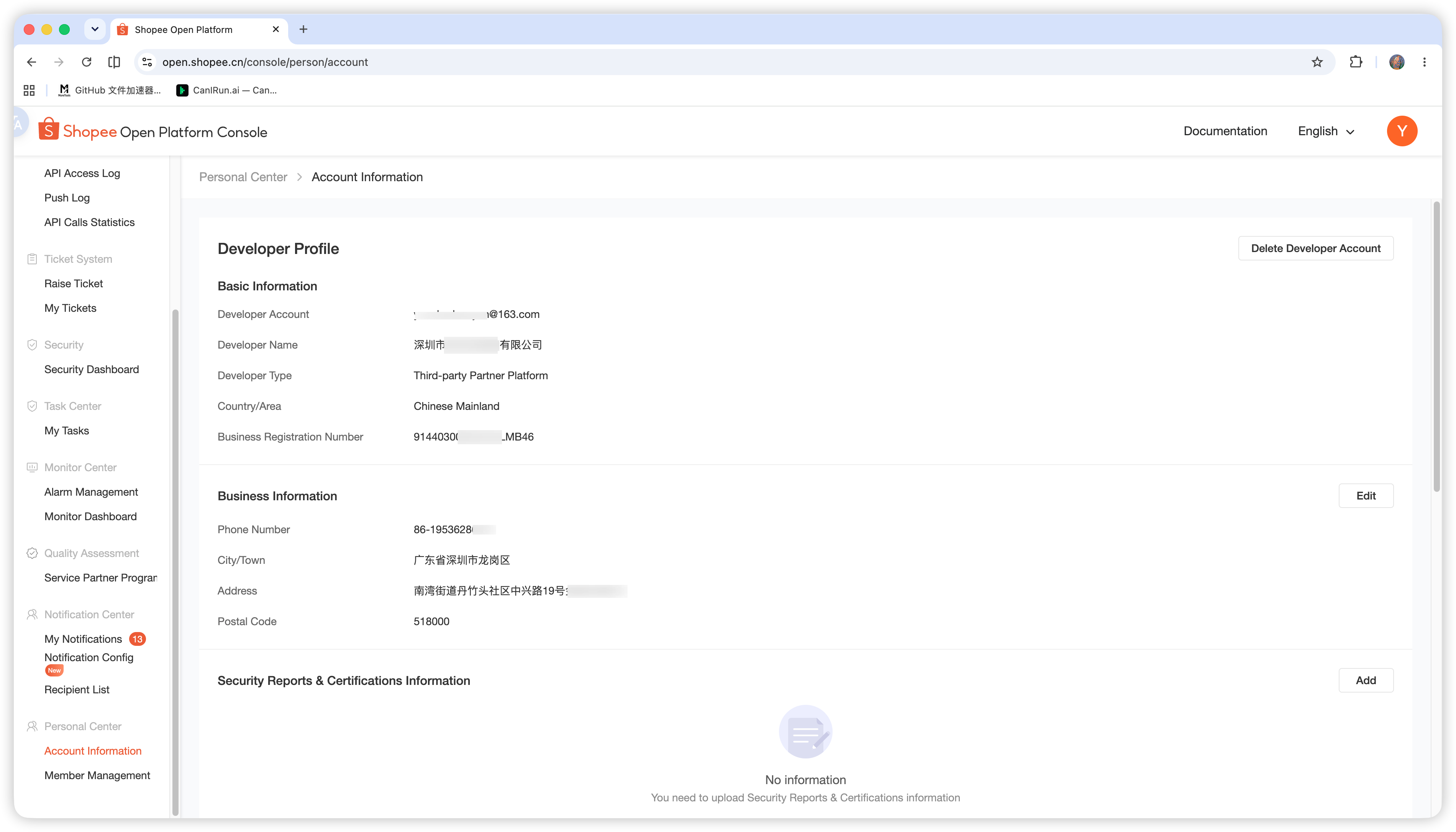
Yes. CH has passed the official service provider reviews of major cross-border e-commerce platforms:
- TikTok Shop Official Partner (ISV): passed the US Data Security Review and the Data Security & Privacy Review, certified for "Logistics & Fulfillment / Order Management (OMS/WMS) / Customer Service" app development, covering the US, Japan, Europe, Southeast Asia, and more.
- Shopee Open Platform Partner: officially onboarded to the Shopee Open Platform as a Third-party Partner Platform with complete business registration.
The software is built on official open platform APIs. Order data is obtained via store authorization through the platform's official secure channel — your store account password is never required.
The credential screenshots below are taken from the official platform consoles:
Which e-commerce platforms and regions are supported?
Short answer: CH Order Print connects to five marketplaces — TikTok Shop in 23 countries, Shopee in 8 markets, Shopify stores worldwide, plus Ozon (Russia) and Takealot (South Africa).
Every store is connected through the platform's official open API after the seller approves the authorization. We do not scrape pages and we never ask for your store password.
TikTok Shop — 23 countries
Americas: United States, Mexico, Brazil.
Europe: United Kingdom, Spain, France, Germany, Italy, Netherlands, Portugal, Greece, Belgium, Hungary, Poland, Austria, Czech Republic.
Asia-Pacific: Japan, Malaysia, Indonesia, Thailand, Singapore, Philippines, Vietnam.
Orders from all of the above use the same flow: authorize the store once, turn on store listening, and orders are pushed to the client in real time.
Shopee — 8 markets
Malaysia, Singapore, Philippines, Indonesia, Thailand, Vietnam, Brazil, and Taiwan (China).
Shopify — worldwide
Any Shopify store can be connected, regardless of the country it sells to. Setup needs the store's default myshopify.com domain, store ID, and a custom app's Client ID and Client Secret.
Ozon and Takealot
Ozon (Russia): supported, orders are handled the same way as on the other marketplaces.
Takealot (South Africa): supported in Offer-level manual printing — you select the offers to print instead of relying on automatic order push.
What "supported" actually means
- Orders are pushed to the desktop client in real time once the store is authorized;
- Automatic printing and batch printing with your own document templates;
- Fulfillment status is written back to the platform after printing;
- Works with thermal, laser, and label printers, on Windows, macOS, and Linux.
Not on the list?
More platforms are being added. If your marketplace is missing, contact support — roadmap priority is driven by how many sellers ask for it.
Quick answers
- Do US and EU TikTok shops work the same way? Yes, all 23 countries above follow the same authorization and printing flow.
- Are TikTok live auction orders supported? Yes. Tick the unpaid and on-hold statuses and orders can be printed as soon as they are placed — see Are live-stream auction orders supported?
- Do all platforms include buyer nicknames? No. It depends on the region and category — see Why is the buyer nickname missing?
- How do I connect a store? Store management → choose the platform → authorize. See How do I authorize a TikTok store?
Are live-stream auction orders supported?
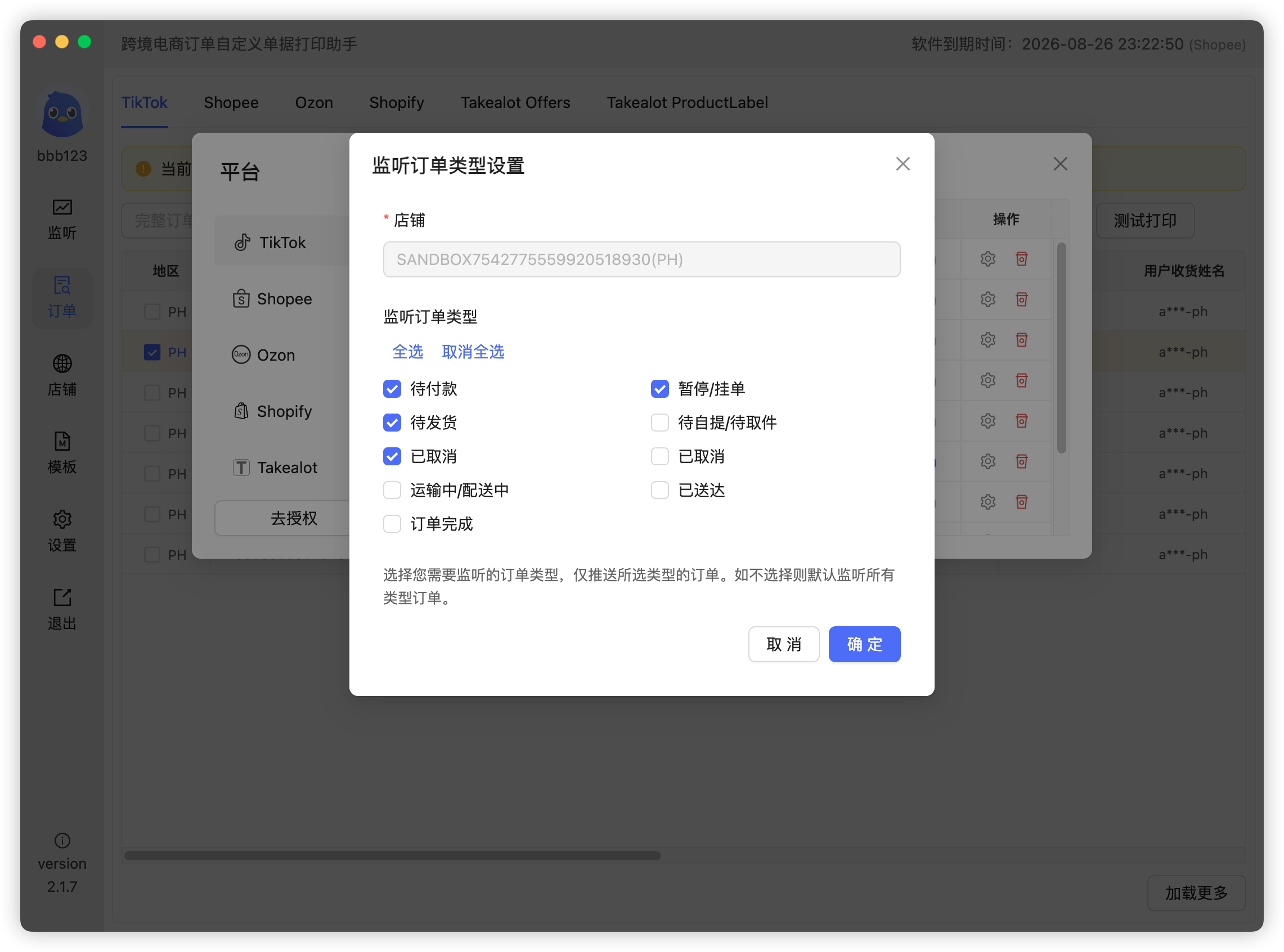
Yes. In TikTok live-stream auction / flash-bid scenarios, an order usually starts in UNPAID or ON HOLD / Pending status right after the bid is won. Enable these statuses in the "Listened Order Status" settings and the ticket will be printed immediately when the bid is won, without waiting for payment.
Notes:
- UNPAID, ON HOLD, and AWAITING SHIPMENT may each push one order after the buyer pays (up to 3 tickets) — enable only the statuses your workflow needs;
- We recommend adding a text component bound to the Order Status field in your print template to distinguish tickets;
- Pre-listed auction products do not include the buyer nickname while in UNPAID / ON HOLD status. See Why is the buyer nickname missing?
Why are new orders not printed automatically?
Automatic printing requires all three conditions:
- Enable store listening: turn on the listening switch for the store in the Stores list. Only then will the software receive real-time pushed orders, which appear on the Listening page;
- Enable auto-print: turn on Auto Print in Settings;
- Bind a print template: bind your designed template to the store, otherwise nothing can be printed.
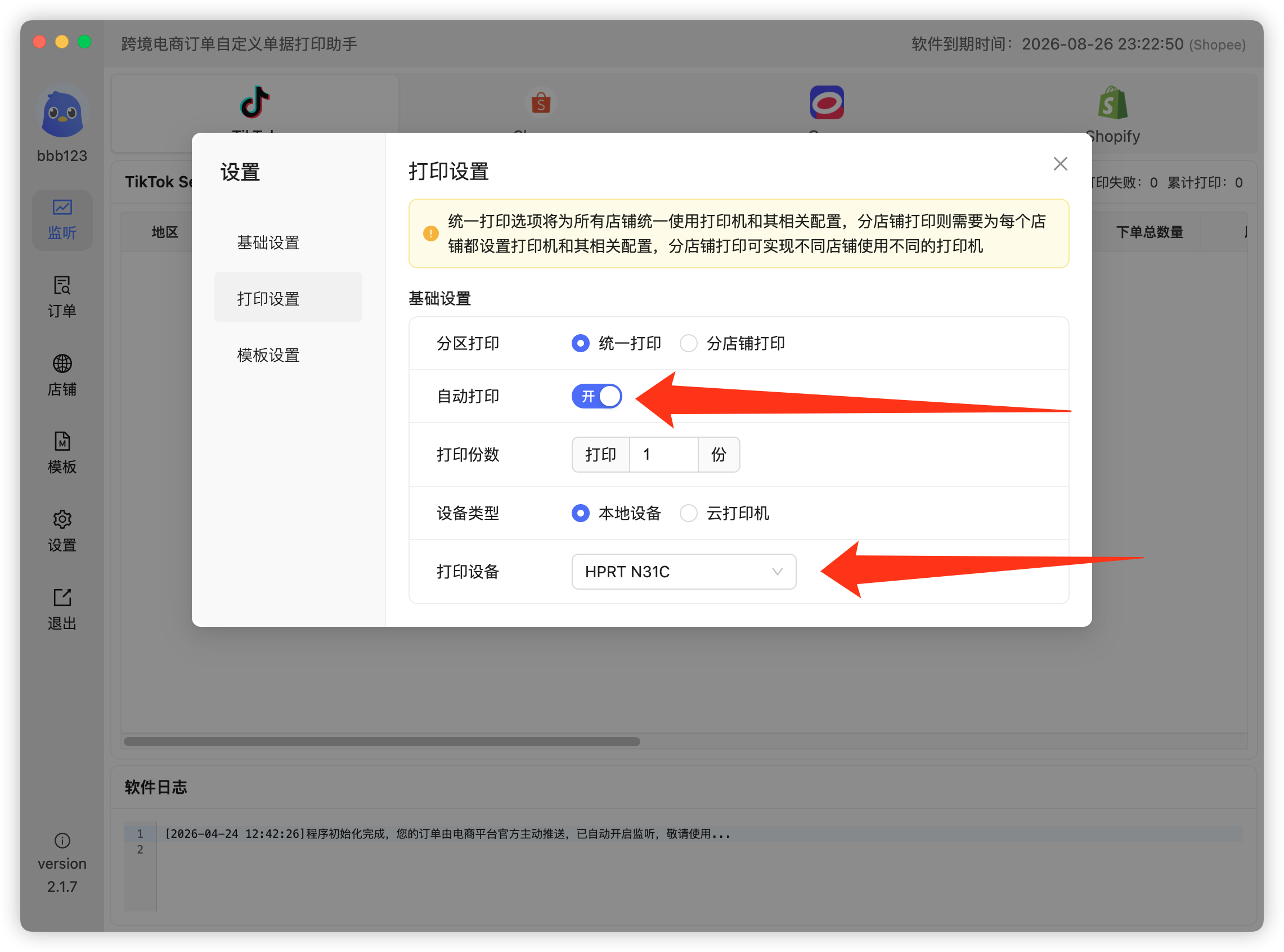
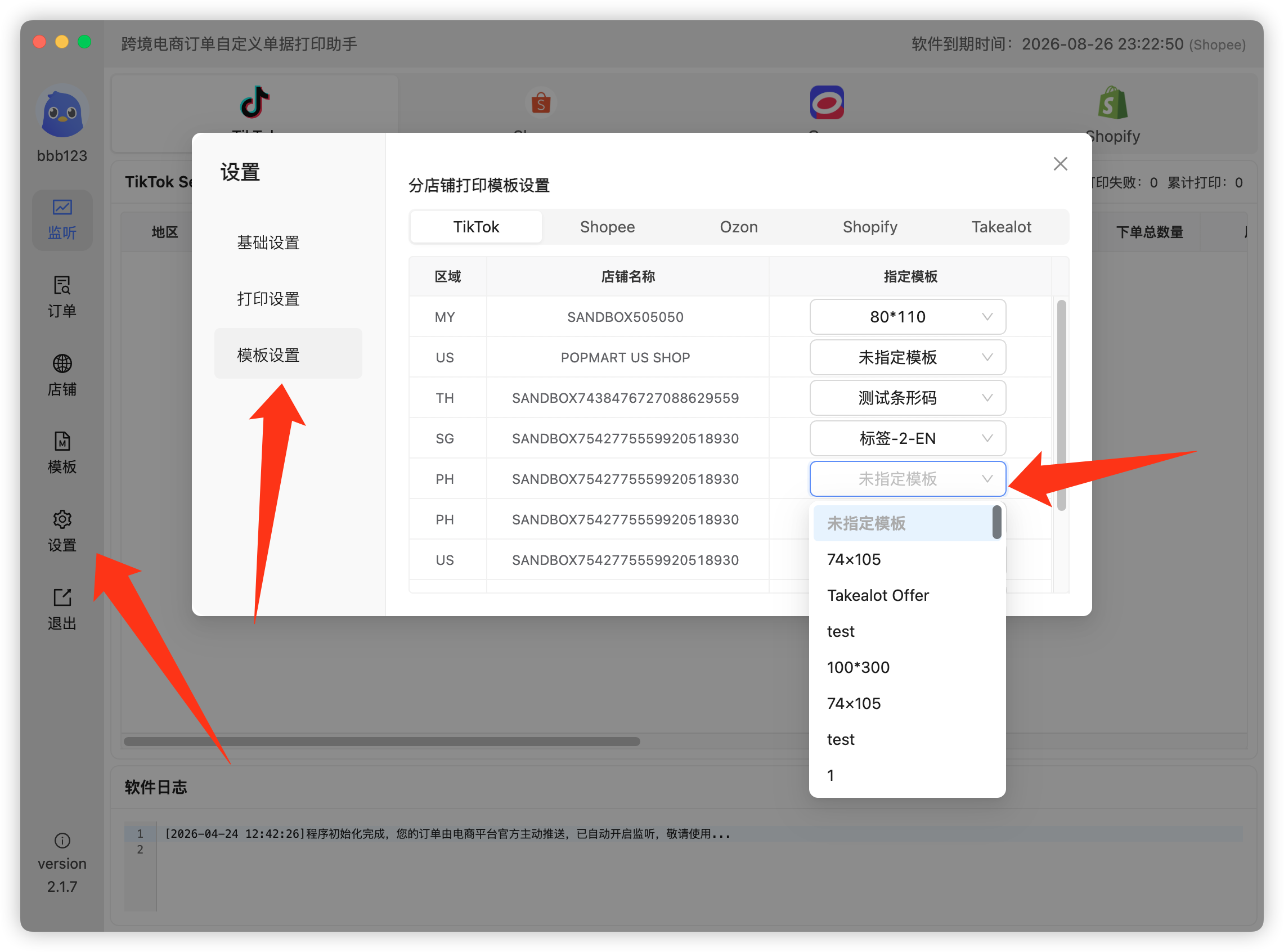
If everything above is set but still no ticket comes out, check the log area at the bottom of the Listening page for errors. If "Listened Order Filtering" (product ID / product name filter) is enabled, verify the filter conditions — most "no ticket" cases are caused by it.
Why is the buyer nickname missing in TikTok orders? How to fix it?
Whether the pushed TikTok order includes the buyer nickname depends on your store type (as of May 2026):
- US, JP, GB, FR, DE stores: nickname always included;
- Non US, JP, GB, FR, DE stores: only toy and collectible category stores include it;
- Pre-listed auction products do not include the nickname while in UNPAID / ON HOLD status.
In simple terms: If you are a store in the aforementioned area and you only need to automatically print the "To Be Shipped" and subsequent orders, then you don't need to read further because TikTok comes with a nickname that you can simply use.
Other platforms: Shopee includes nicknames except Taiwan; Shopify includes them on Grow plans and above; Ozon always includes them.
If your store doesn't meet the conditions but you still need nicknames on tickets, we provide three methods that fetch the nickname locally on your computer with your authorization (never through our servers):
- Google Chrome authorization — easy to set up and non-intrusive, but the login state may be lost from time to time;
- Ziniao (SuperBrowser) authorization — set once and forget, but the initial setup is complex and popups appear while printing;
- Browser Extension authorization — combines both advantages, works on all Chromium-based browsers (Chrome, Edge, Ziniao, AdsPower, etc.).
See the full tutorial: TikTok buyer nickname setup (3 methods)
How do I download and install CH Order Print?
Go to https://chdd.fun and download the Windows or macOS version from the homepage. For the Linux build, please contact support.
After installation, open the app, register an account and log in.
- Windows users: unzip the package before installing. See Windows installation fails?
- Mac users: if you see a "damaged" warning, see Mac says the app is damaged?
How do I authorize a TikTok store?
Store authorization connects your store to the app through the platform's official open platform, so the app can receive orders for real-time and manual printing.
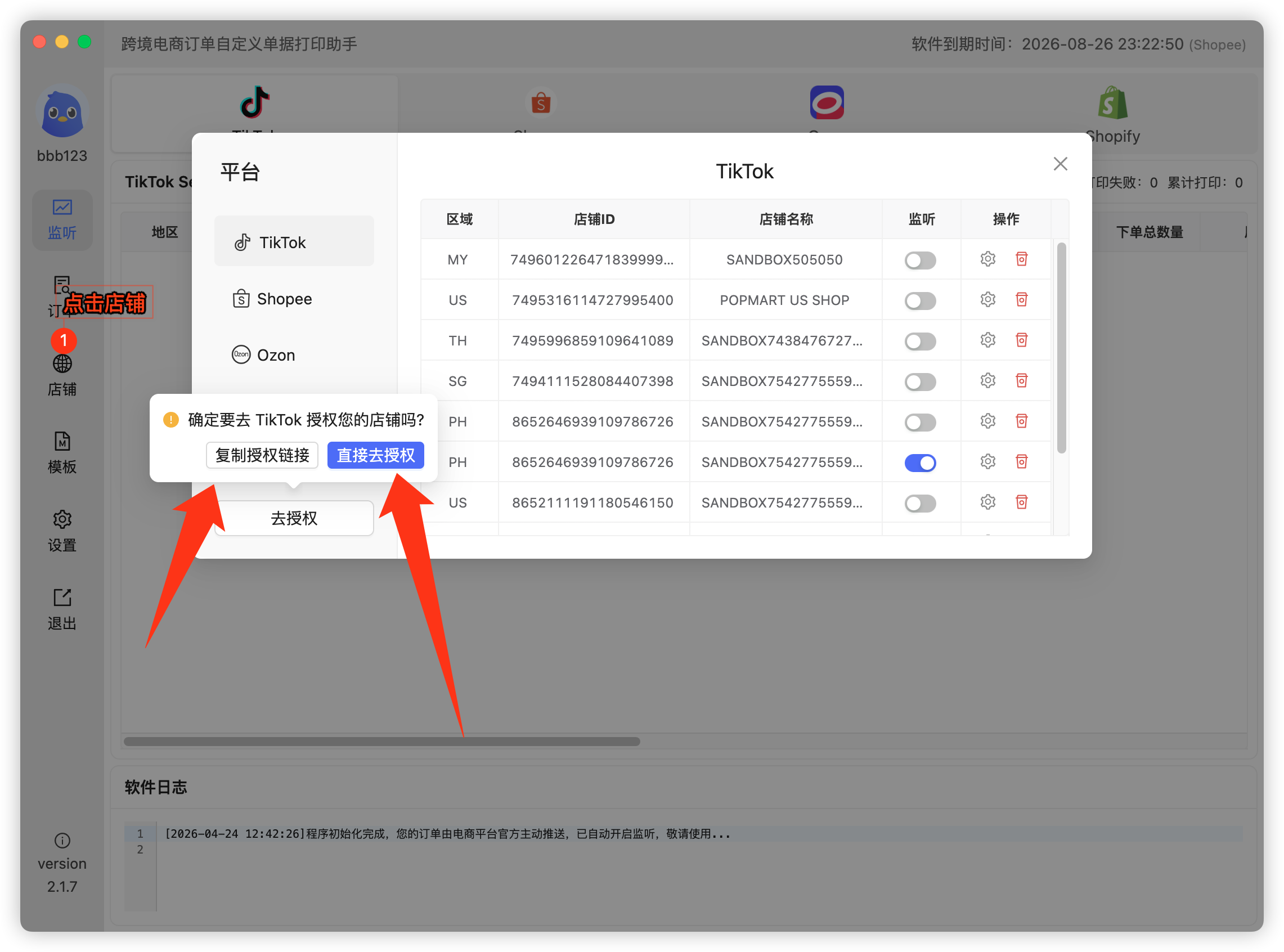
- Click Stores on the right to open Store Management;
- Select TikTok as the platform and click Authorize. Two options are available:
- Copy authorization link (recommended): open the copied link in any browser where your store is already logged in and authorize directly;
- Direct authorization: pick your region as prompted, log in to your store in the popup browser, then authorize.
- Key step: after authorizing on TikTok's side, wait ~5 seconds or click the button to be redirected back to the app's authorization page. The flow is only complete when you see the "Authorization successful" message;
- If the store doesn't appear afterwards, restart the app to refresh.
Note: for US local stores, ACCU type can follow the steps above; for CCCU type, please contact support for assisted authorization.
How do I authorize a Shopee store?
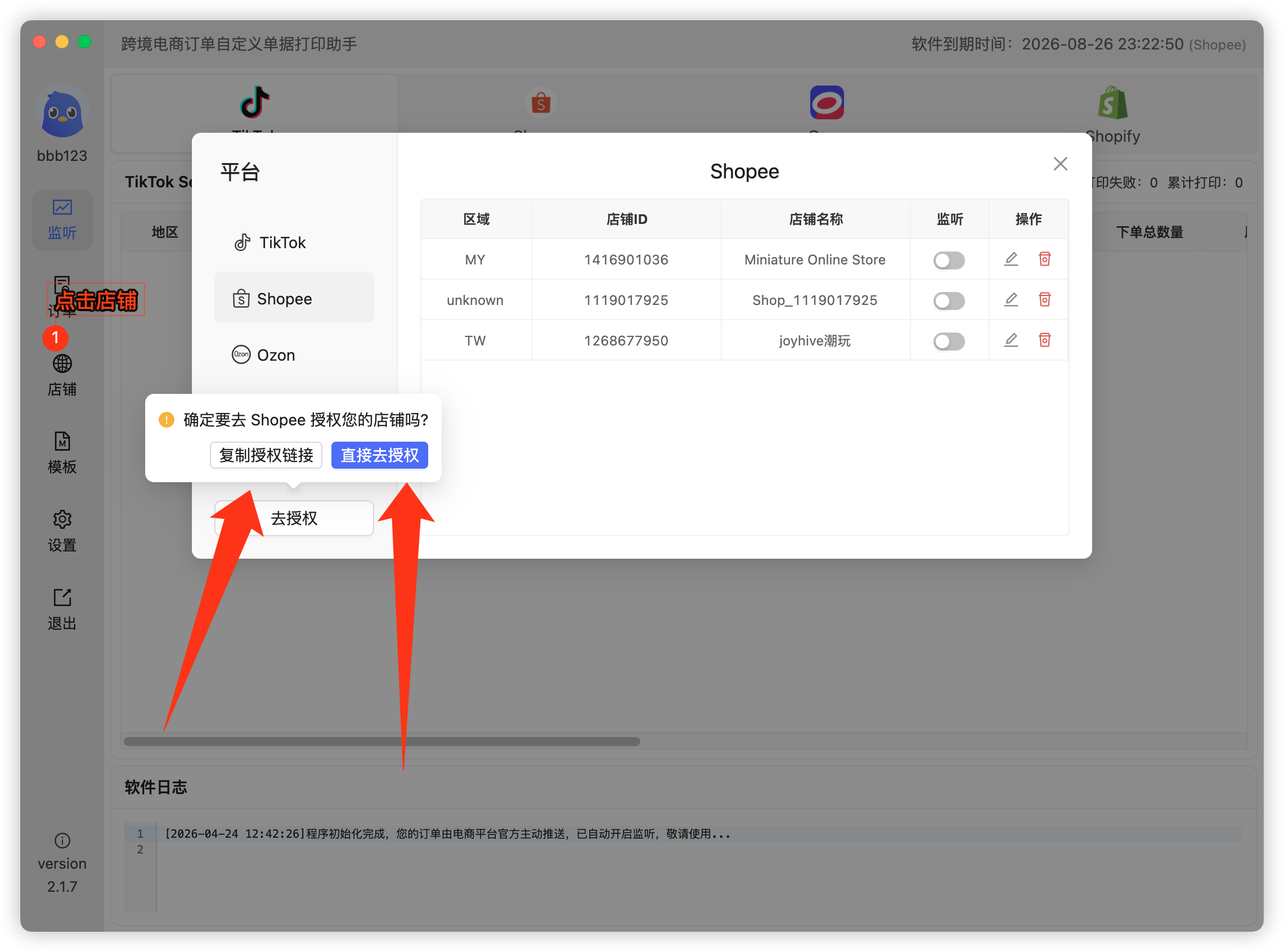
- Click Stores on the right to open Store Management;
- Select Shopee as the platform and click Authorize. Two options:
- Copy authorization link (recommended): open the copied link in a browser where your store is already logged in and authorize directly;
- Direct authorization: log in to your store in the popup browser, then authorize.
- If the store doesn't show up in the app afterwards, restart the app to refresh.
What is store listening and why enable it?
Listening is the switch for receiving real-time order pushes: when enabled, the platform pushes new orders to the app in real time (shown on the Listening page); when disabled, no real-time orders are received and auto-printing will not work.
After store authorization and template design, turn on the listening switch for each store in the Stores list:
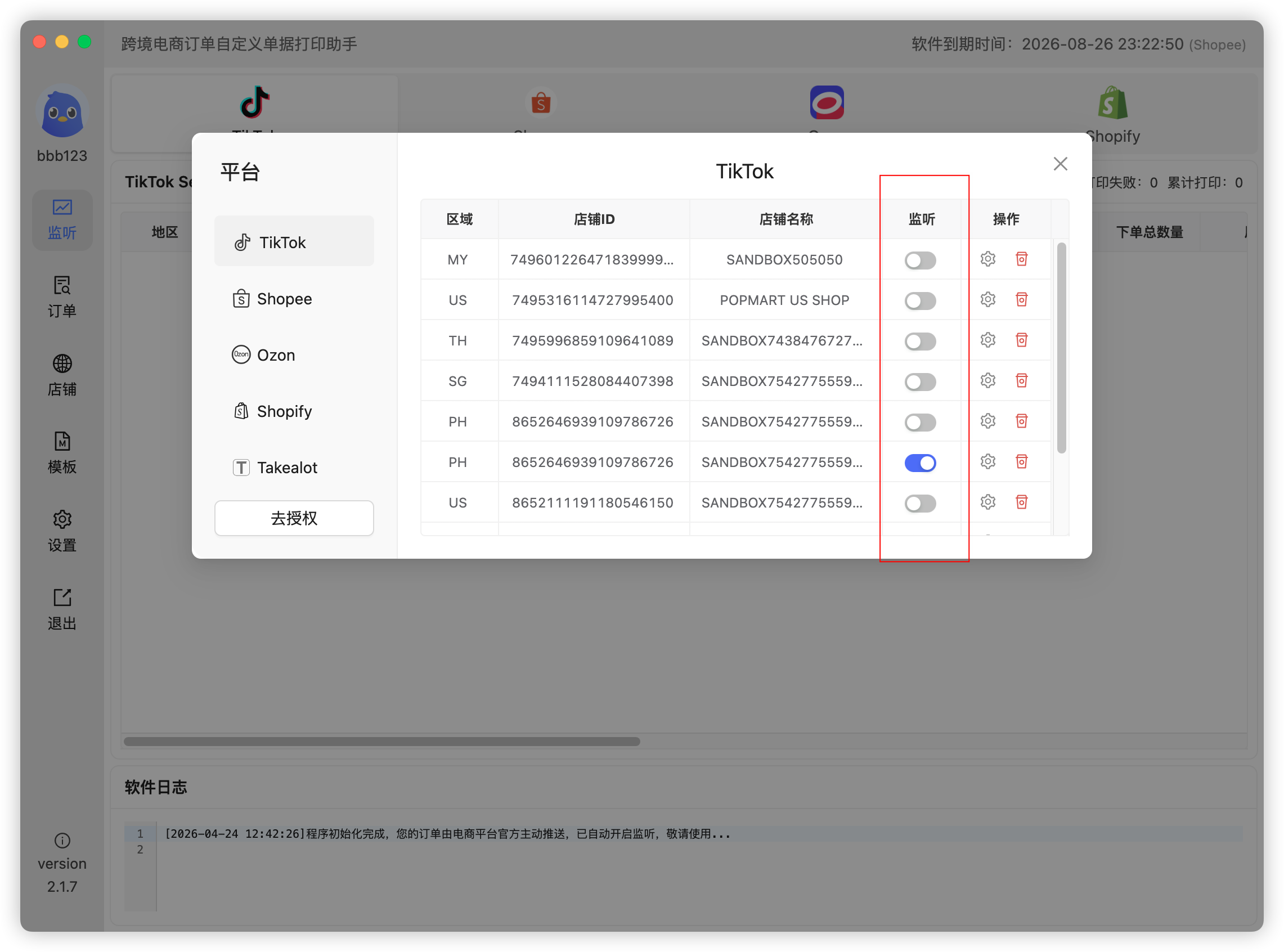
For fully automatic printing you also need to enable Auto Print and bind a template — see Why are new orders not printed automatically?
How to choose TikTok listened order statuses? Which orders get printed?
By default, TikTok orders are printed only for Awaiting Shipment and Cancelled statuses. You can freely enable other statuses in the settings.
Status mapping:
- Pending payment =
UNPAID - Paused / held =
ON HOLDorPending - Ready to ship =
AWAITING SHIPMENT
Important: after the buyer places an order and pays, all three statuses above may each push an order — meaning up to 3 tickets for a single order. Enable only what your workflow needs. Other statuses push orders when the corresponding action happens.
We recommend adding a text component bound to the Order Status field in your print template to distinguish ticket types.
No orders found when searching?
If the Orders page returns nothing, check in this order:
- Search time range: the start time must be earlier than the order creation time, otherwise the result is empty (the most common cause);
- Store authorization: expired or incomplete authorization prevents order fetching — try re-authorizing;
- Shopify stores: verify Store ID, API URL, Client Id and Client Secret (you must use the default
*.myshopify.comdomain assigned by Shopify, not a custom domain).
It says "printed successfully" but nothing comes out?
If the log says the print succeeded but no ticket comes out:
- Printer connection: make sure the printer is powered on and connected (USB / network) and recognized by the OS;
- Printer selection: open Settings and verify the correct printer is selected (easy to get wrong with multiple printers);
- Check the log: open the Listening page and check the log area at the bottom for errors.
What does the "SKU Merge" template option mean?
SKU Merge is a template parameter that decides whether one order prints one or multiple tickets:
- No: every SKU in the order prints its own ticket according to quantity — possibly many tickets;
- Same: identical SKUs are merged onto one ticket — still possibly multiple tickets;
- All: one single ticket per order regardless of how many SKUs it contains.
In short: choose All for one ticket per order; choose No or Same for multiple tickets.
Note: with All, product info is bound to the Product Name field — it becomes a combination of name, SKU and quantity, and some SKU-level fields (SKU quantity, SKU amount, etc.) become invalid.
Mac says the app "is damaged and can't be opened"?
macOS security (Gatekeeper) only trusts apps from the Mac App Store or those with a Developer ID signature by default, so unsigned apps are reported as "damaged".
Fix: open Terminal and run (replace /path/to/app with the actual path — you can drag the app into the Terminal window):
sudo xattr -r -d com.apple.quarantine /path/to/appPress Enter, type your login password (input is hidden), and press Enter again.
Windows installation keeps failing?
Two common causes on Windows:
- Installing without unzipping: fully extract the downloaded package with an unzip tool before running the installer;
- Antivirus interference: some antivirus software (including the built-in Windows Defender on Windows 8/10/11) may block unsigned installers or even quarantine the files. Temporarily disable the antivirus or whitelist the installation folder, then retry.
How to print in bulk?
Select the orders on the Orders page and click "Batch Print". You can also enable auto-printing for a fully automated process from order to print.
Do you support custom templates?
Yes. Choose or design templates in the Template Center, with built-in text, barcodes, QR codes, logos, and dynamic variable binding.
How to get technical support?
Email insistc85@gmail.com or add WeChat: chenhuang5019.
 Or email us: