
Automatic printing requires all three conditions:
- Enable store listening: turn on the listening switch for the store in the Stores list. Only then will the software receive real-time pushed orders, which appear on the Listening page;
- Enable auto-print: turn on Auto Print in Settings;
- Bind a print template: bind your designed template to the store, otherwise nothing can be printed.
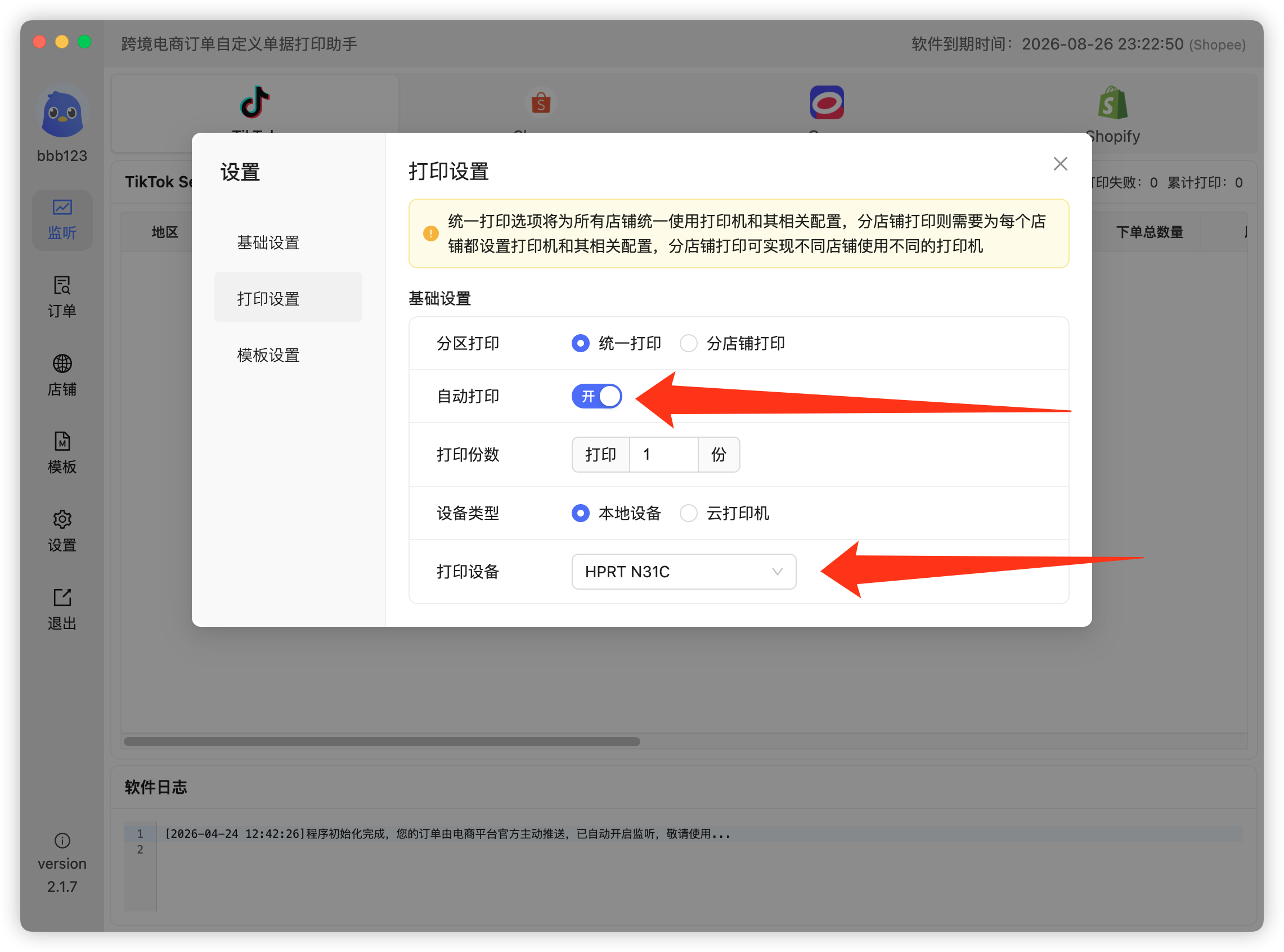
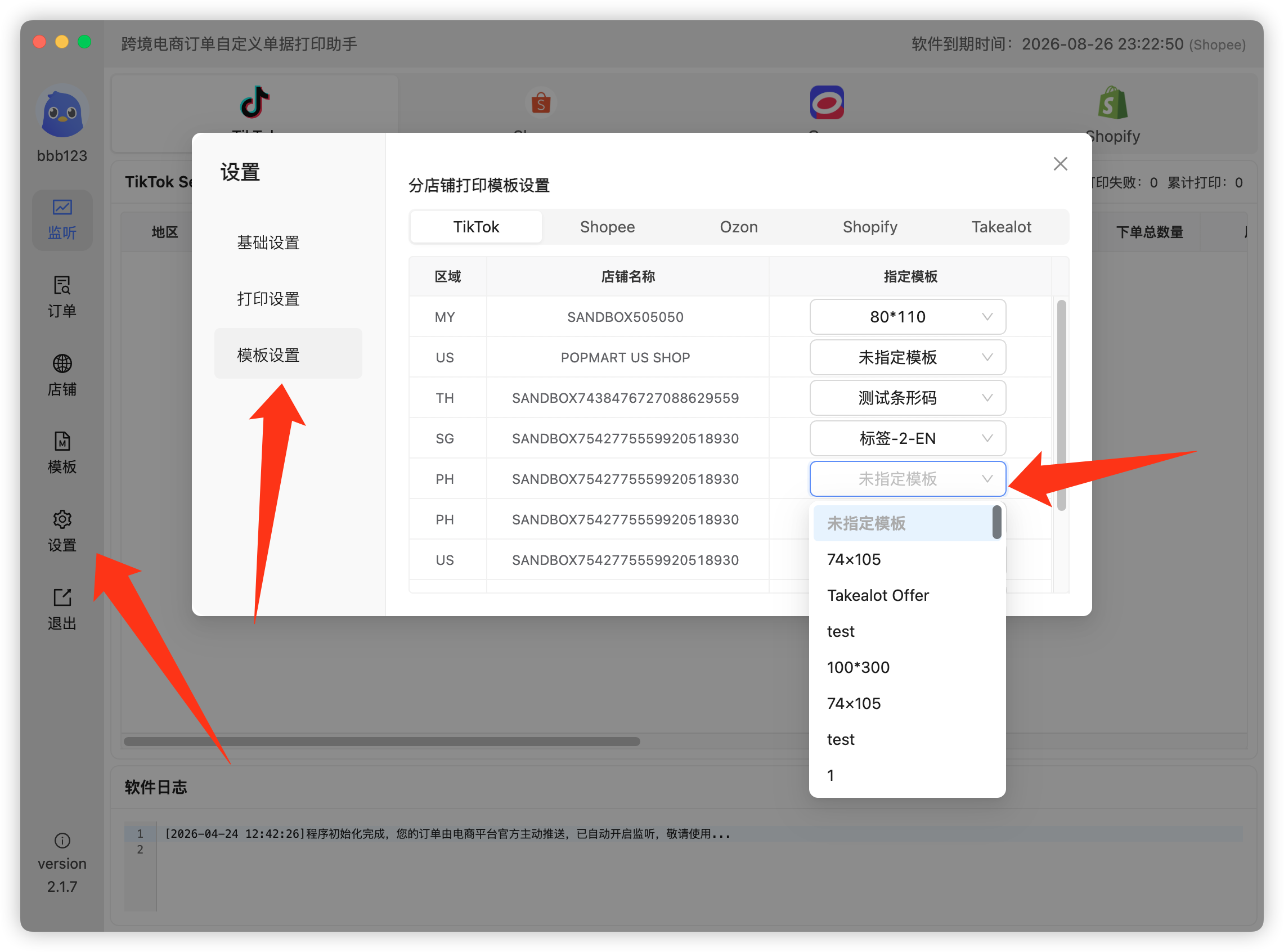
If everything above is set but still no ticket comes out, check the log area at the bottom of the Listening page for errors. If "Listened Order Filtering" (product ID / product name filter) is enabled, verify the filter conditions — most "no ticket" cases are caused by it.
 Or email us: