
Store authorization connects your store to the app through the platform's official open platform, so the app can receive orders for real-time and manual printing.
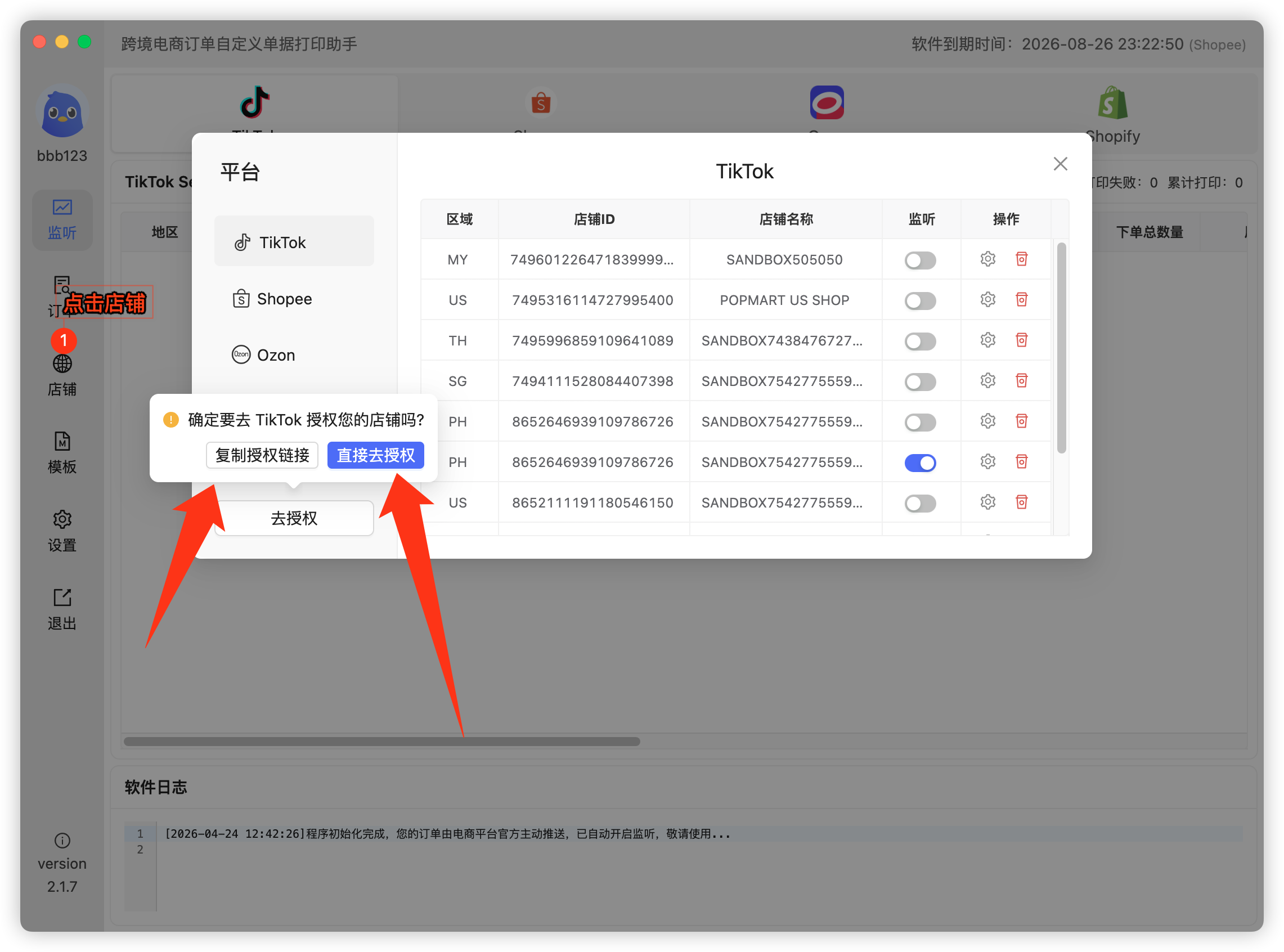
- Click Stores on the right to open Store Management;
- Select TikTok as the platform and click Authorize. Two options are available:
- Copy authorization link (recommended): open the copied link in any browser where your store is already logged in and authorize directly;
- Direct authorization: pick your region as prompted, log in to your store in the popup browser, then authorize.
- Key step: after authorizing on TikTok's side, wait ~5 seconds or click the button to be redirected back to the app's authorization page. The flow is only complete when you see the "Authorization successful" message;
- If the store doesn't appear afterwards, restart the app to refresh.
Note: for US local stores, ACCU type can follow the steps above; for CCCU type, please contact support for assisted authorization.
 Or email us: