
Live-stream selling adds two extra jobs to order processing: shipping fast, and keeping each live room's orders apart. This guide covers both — how to enable auto-fulfillment, and how to filter so one live room's orders print on their own.
1. Auto-fulfillment only works with Ship by TikTok
Check this first: auto-fulfillment supports the "Ship by TikTok" mode only. If the product is set to "Shipped by seller" in your seller centre, the feature is unavailable — you print automatically and ship manually instead.
Once you are on Ship by TikTok, enable Auto Ship and Print Shipping Label. The client then fulfils each order as it arrives on the Listening page. The full chain is:
Buyer places order → app receives it → prints your custom ticket → auto-fulfills → prints the shipping label
Note the order: the custom ticket (picking slip) prints first, then fulfilment happens, then the label prints. Two prints means two templates — bind both.
2. Listened order filtering: separate the live rooms
Filter listened orders by product ID or product name so only the target live room's products print, which lets you route different rooms to different printers or batches.
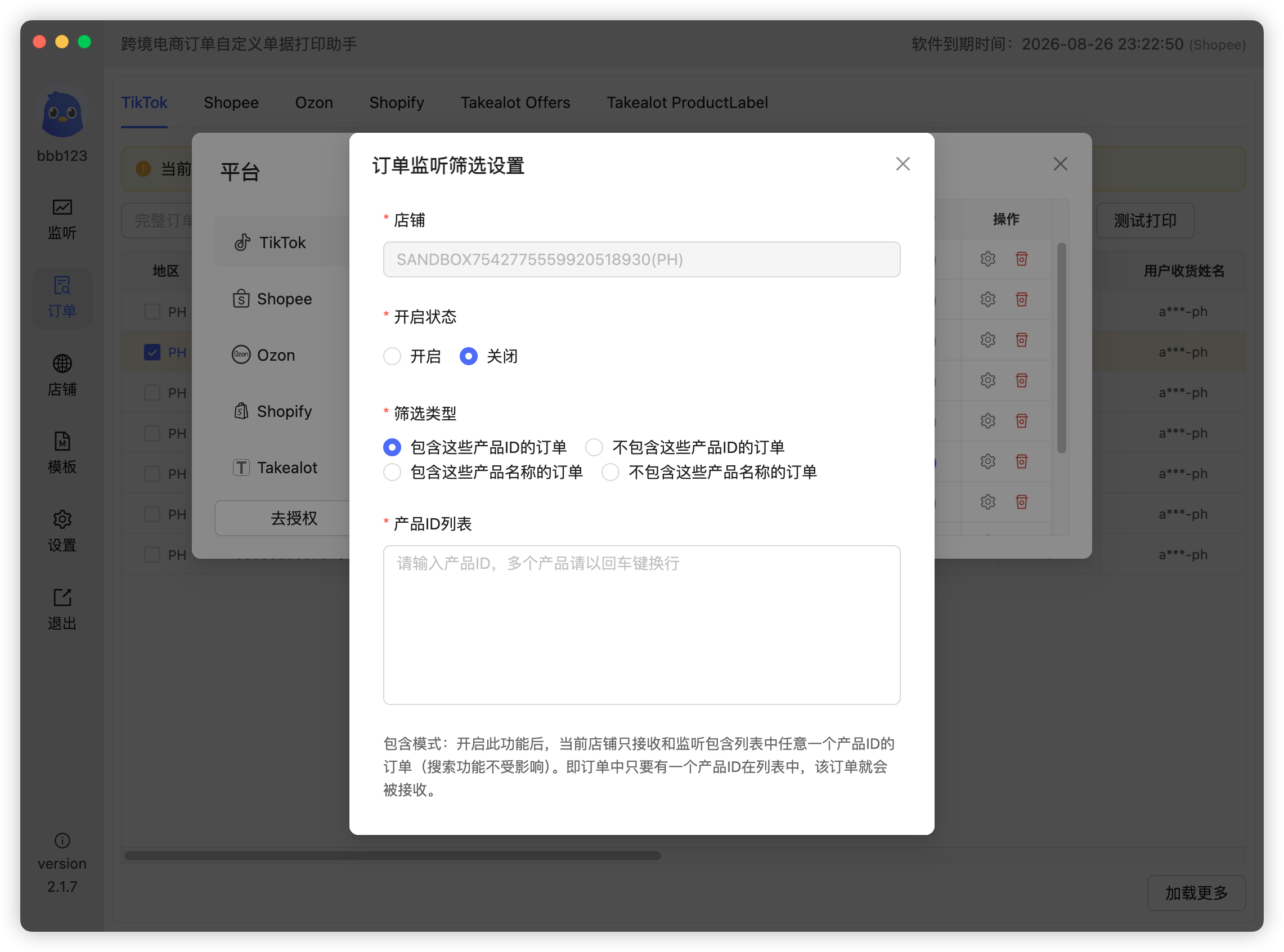
3. Use this filter with care
It is off by default, and it is the single most common cause of "no ticket" reports we see. Read these three before enabling it:
- Set the conditions before the stream starts. A product ID or name that changes mid-stream causes missing or abnormal tickets;
- "Include" and "Exclude" are opposites. One prints only matches, the other prints only non-matches — read the hint under the field before choosing;
- A wrong condition locks you out. A mistyped, missing, or space-padded product ID or name silently filters the orders away.
If your goal is simply to route orders by live room rather than to restrict printing to specific products, creator filtering (next section) is the safer tool — it depends far less on product data.
4. Creator filtering: separate by creator
Filtering by creator achieves the same "one live room at a time" result and is immune to product ID or name changes.
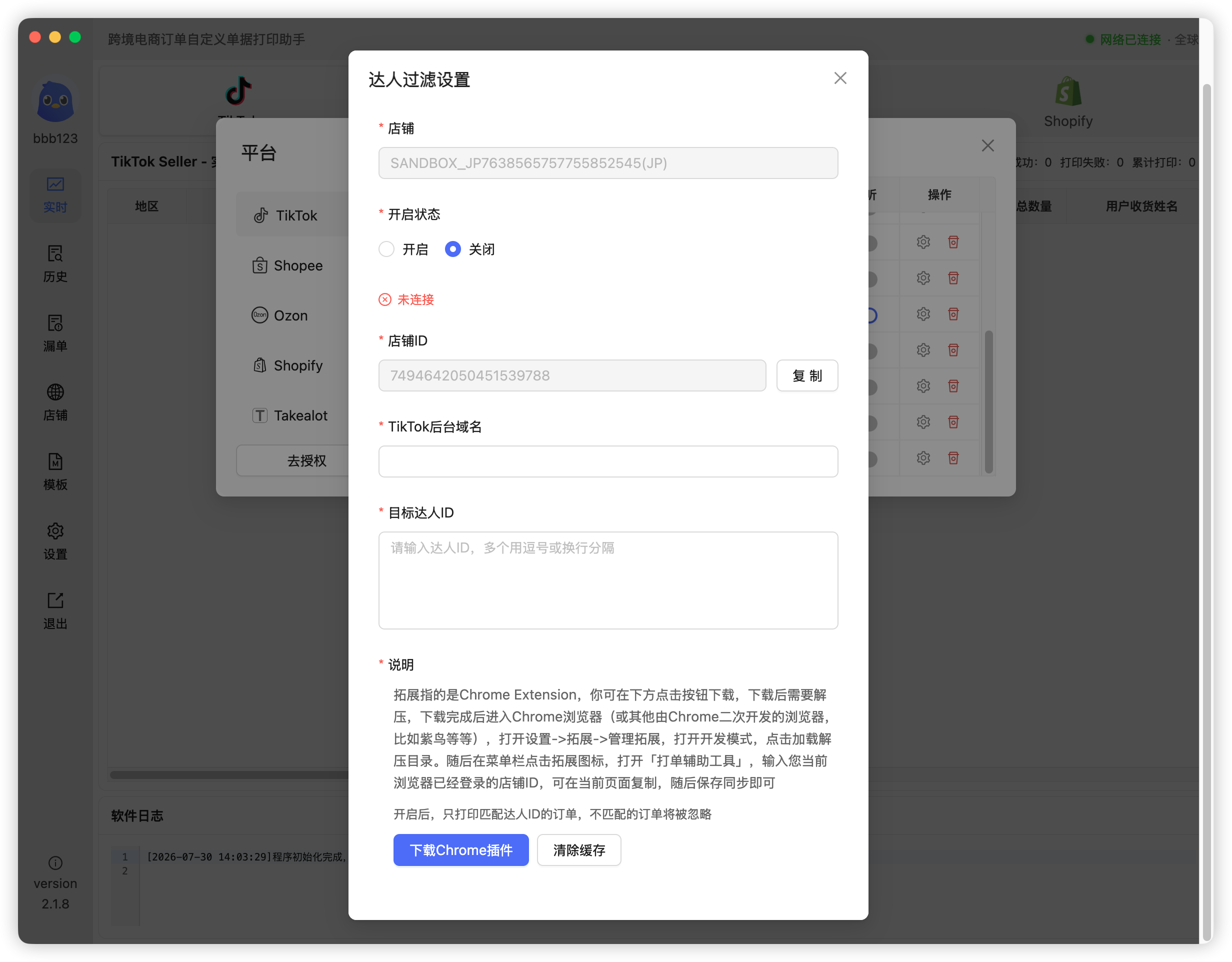
Creator filtering requires the browser extension. Installation and configuration are covered in the "Browser extension" section of the TikTok buyer nickname tutorial.
5. Auto-ship enabled but nothing happens
- Is the product "Shipped by seller"? Check this first — the feature simply does not apply;
- Is Print Shipping Label also on? Auto Ship alone breaks the chain halfway;
- Is listening on? No incoming orders means nothing downstream runs;
- Is a filter swallowing the orders? Turn the filter off and print one order — the fastest way to tell.
 Or email us: