
Which orders carry a buyer nickname and which do not is explained in Why is the buyer nickname missing?. If your store falls outside those rules, there are three ways to supplement the nickname locally, on your own machine, with your authorization — nothing goes through our servers, and the data is used only for your own store's tickets.
Which method to choose
- Google Chrome authorization: simplest to set up and invisible while printing, and it does not interfere with your work on the PC. Downside: the login state drops fairly often, so it needs checking and re-authorizing.
- Ziniao browser authorization: Ziniao supports automated login, so it is usually configured once and keeps working. Downside: setup is fiddly the first time, and printing forces a popup that interrupts you — running Ziniao and the client inside a virtual machine keeps that away from your main PC.
- Browser extension: combines both — no interference, works in the browser your team already uses, no second login; supports every Chromium-based browser (Chrome, Edge, Ziniao, AdsPower, Zhanfu, etc.). Downside: initial setup takes a bit more work.
The short version: one PC and one store → Chrome; a team already on Ziniao → Ziniao; several people, several stores, mixed browsers → the extension.
Method 1: Google Chrome authorization
Use a genuine Chrome installed from the official Google source — some pirated Windows builds ship a fake "Chrome" that causes odd failures.
- In the store settings, open Web authorization and choose the Chrome method;
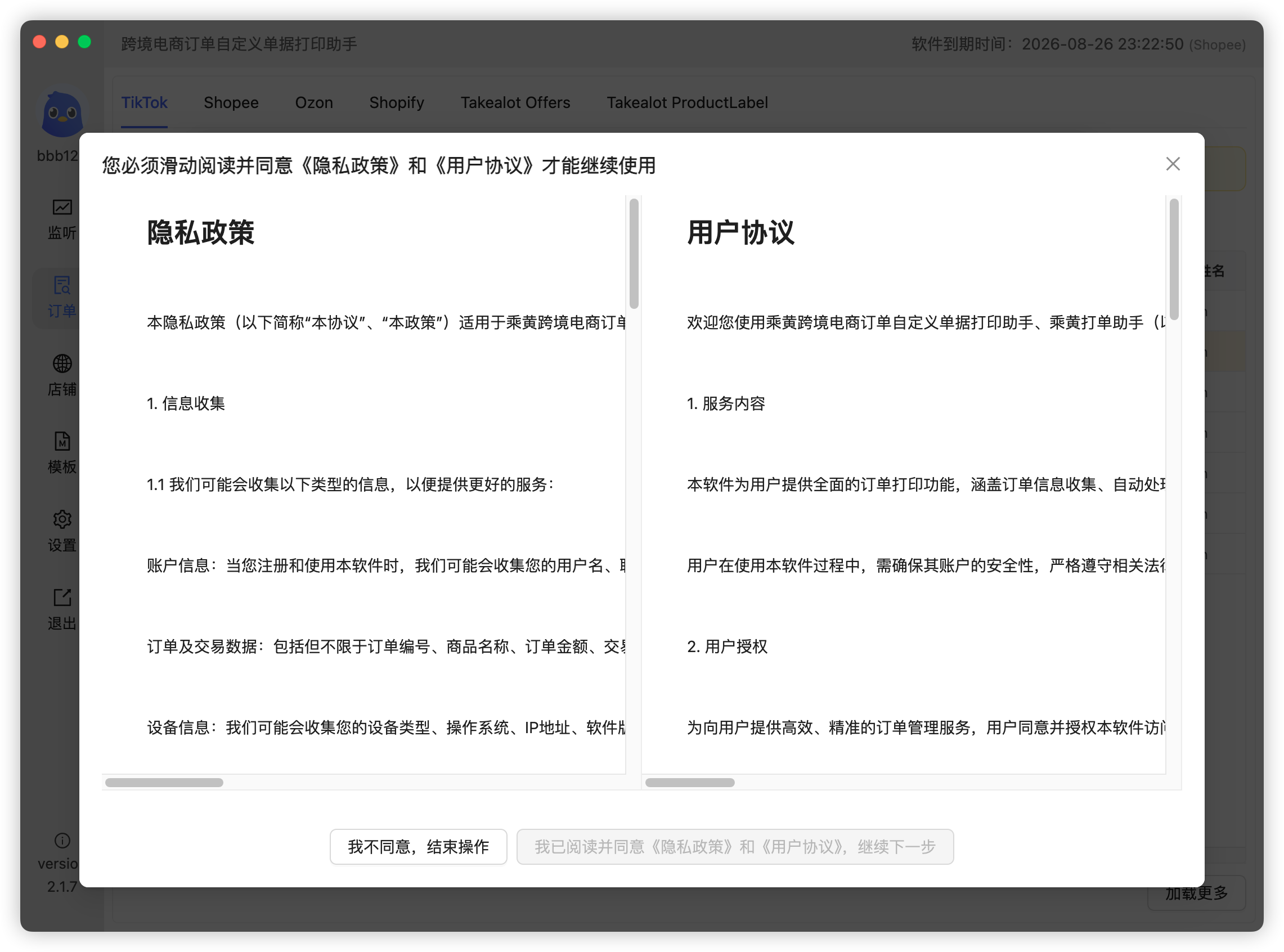
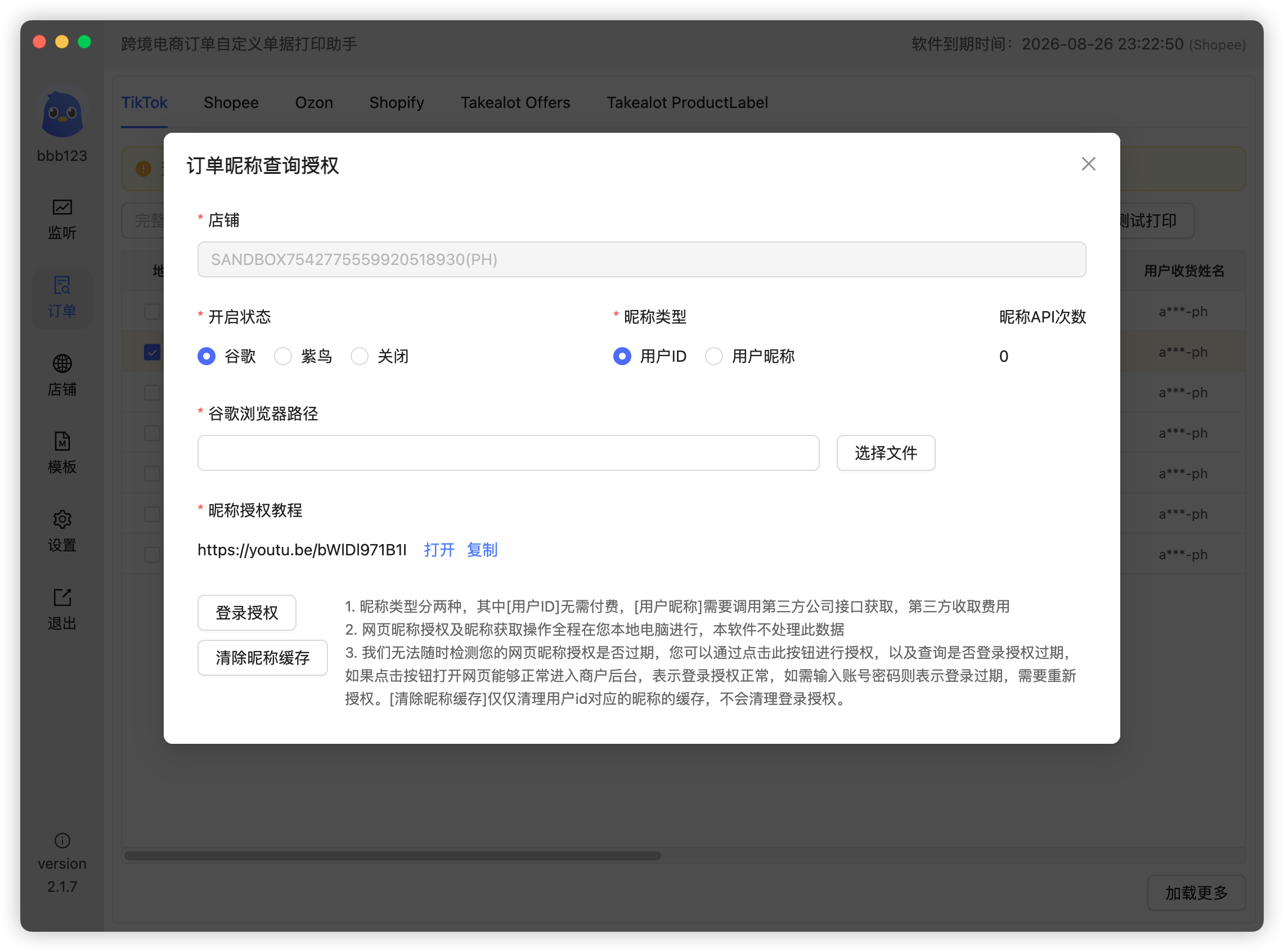
- Enter the correct Chrome install path:
- Windows, typically:
C:\Program Files\Google\Chrome\Application\chrome.exe - macOS needs the extra binary path appended:
/Applications/Google Chrome.app/Contents/MacOS/Google Chrome
- Windows, typically:
- Click Authorize login — Chrome opens;
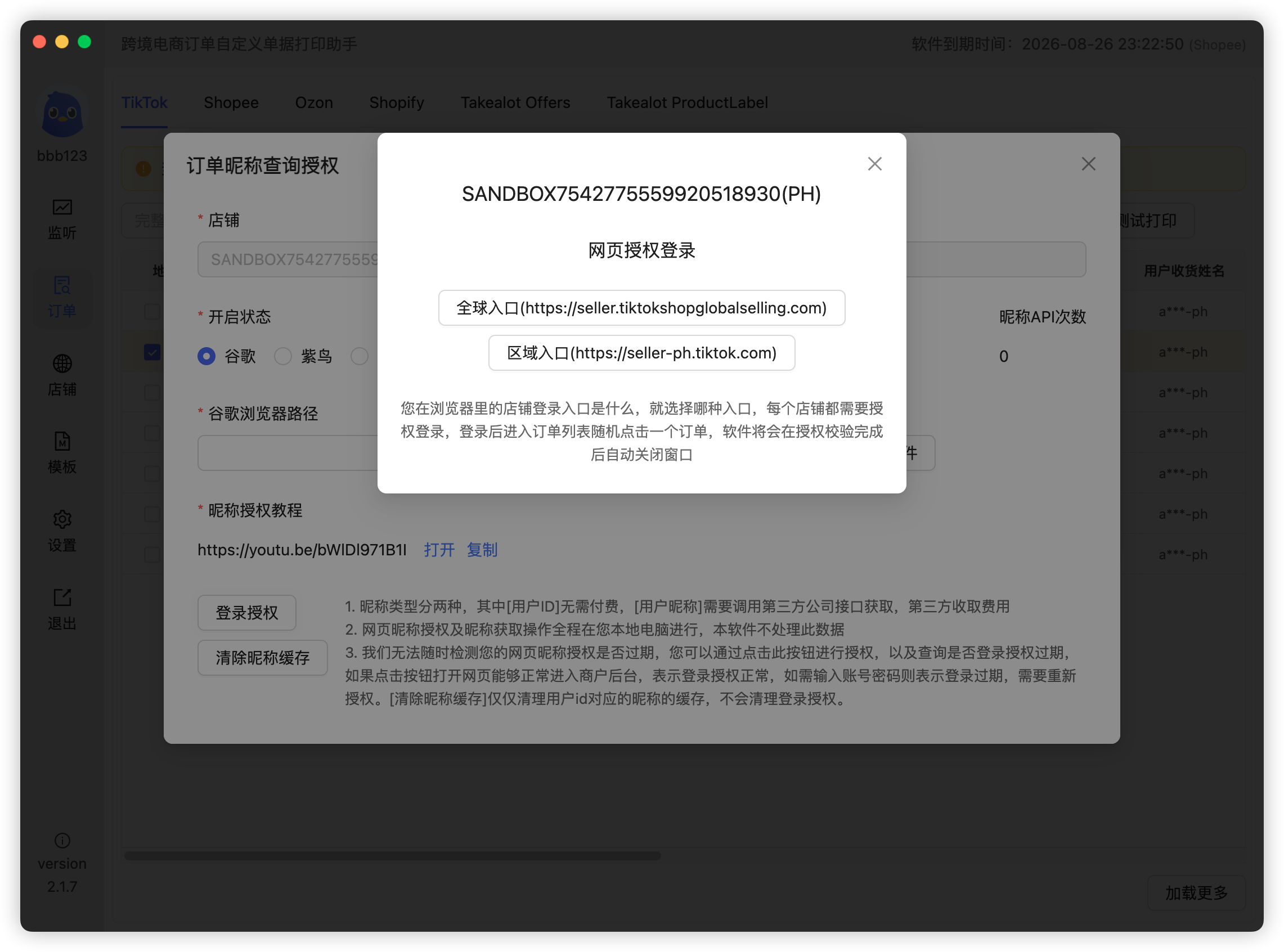
- Log in to your store in that browser, confirm you reach the store home page, then close it;
- Back in the client, search an order on the Orders page and print it to test the nickname.
Video walkthrough (older recording, best used alongside the screenshots): https://youtu.be/bWlDl971B1I
Note: this method can lose its login state. If the nickname suddenly stops printing, click Authorize login and check whether the store needs to sign in again.
Method 2: Ziniao browser authorization
Running Ziniao and the client inside a virtual machine is recommended (bring your own Windows VM) so the forced popups do not disturb your main PC. If popups do not bother you, skip the VM.
- Log in to Ziniao with the master account, go to the open platform and enable the WebDriver permission (see the Ziniao documentation);
- Create a Ziniao sub-account dedicated to the printing client (nobody else should use it), and link every TikTok store that needs nicknames to that sub-account;
- Log in to the sub-account yourself first and confirm the stores auto-login correctly;
- In the client: Stores → any store's settings → Web authorization → Ziniao;
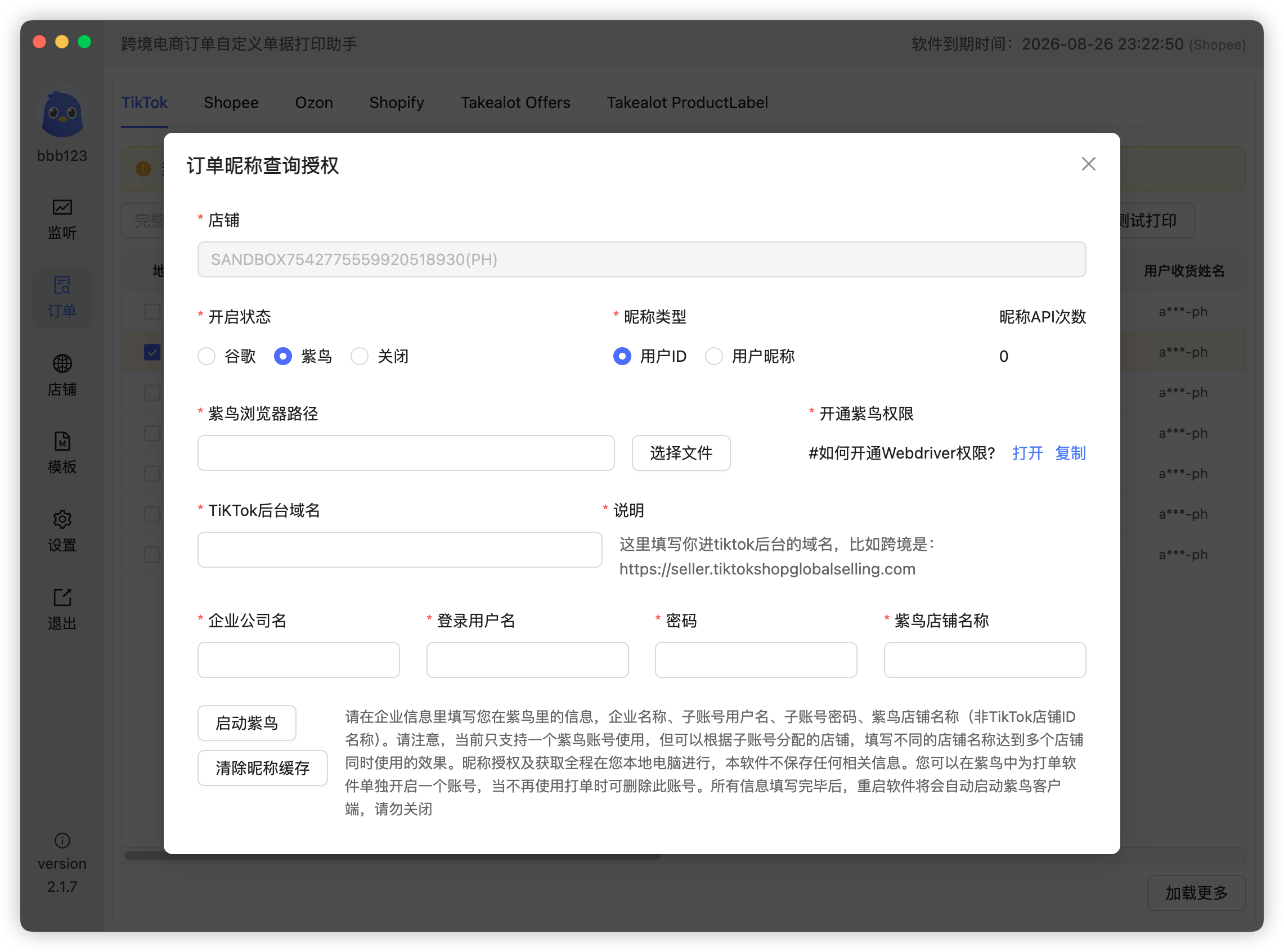
- Select or enter the Ziniao browser executable path (right-click the desktop shortcut to copy it);
- Enter the Ziniao company details: company name, sub-account and password;
- Fill the matching store name from the Ziniao sub-account into each store's Ziniao store name field in the client (one per store);
- Restart the client — it will sync and launch Ziniao automatically;
- Once Ziniao is up, print an order to test the nickname.
Method 3: Browser extension
3.1 Installing in Chrome / Edge
- Download the helper package, extract it to get
ch-chrome-tk-plugins.zip, then extract that into ach-chrome-tk-pluginsfolder; - Open
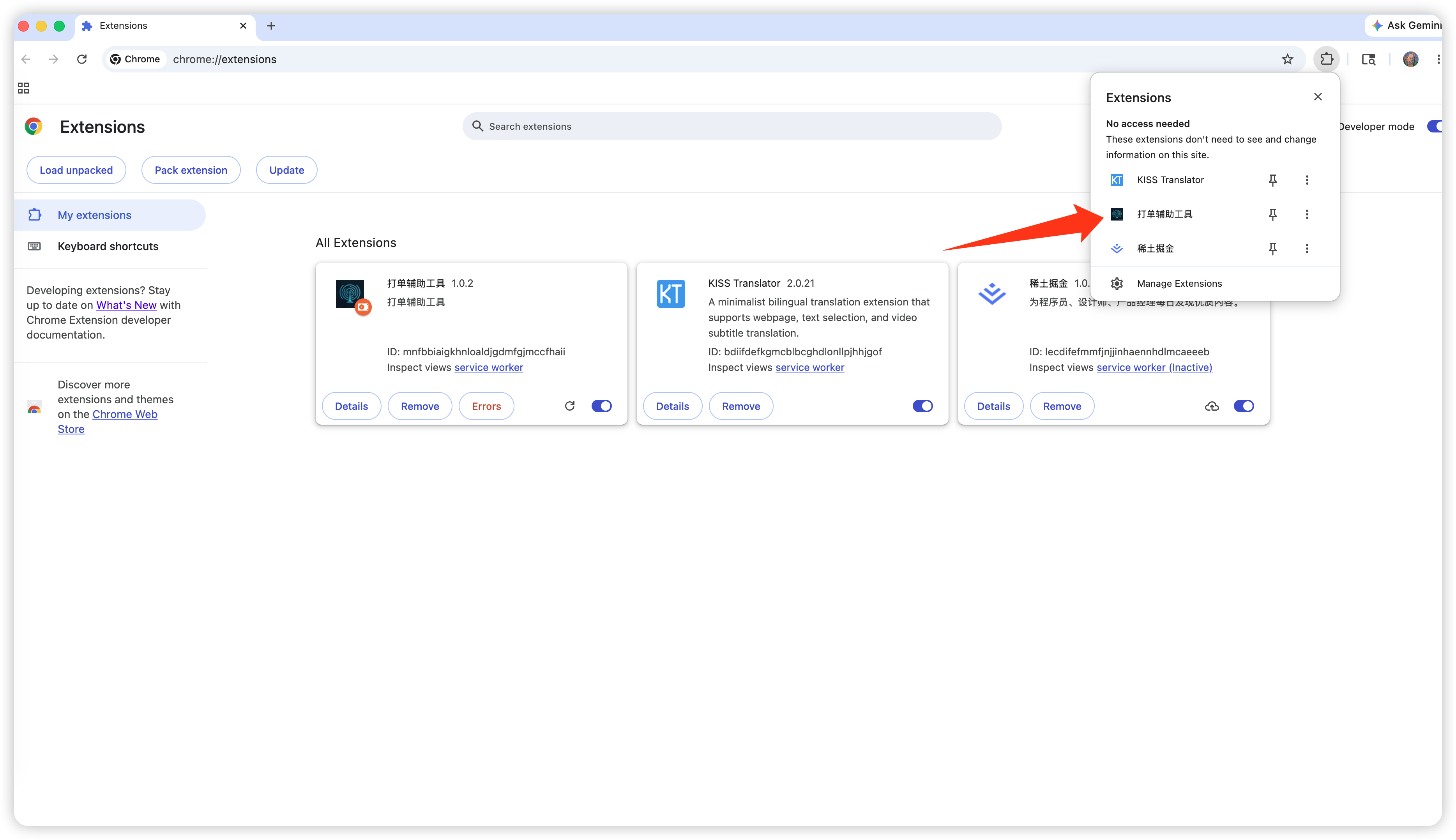
chrome://extensions/and turn on Developer mode (top right);
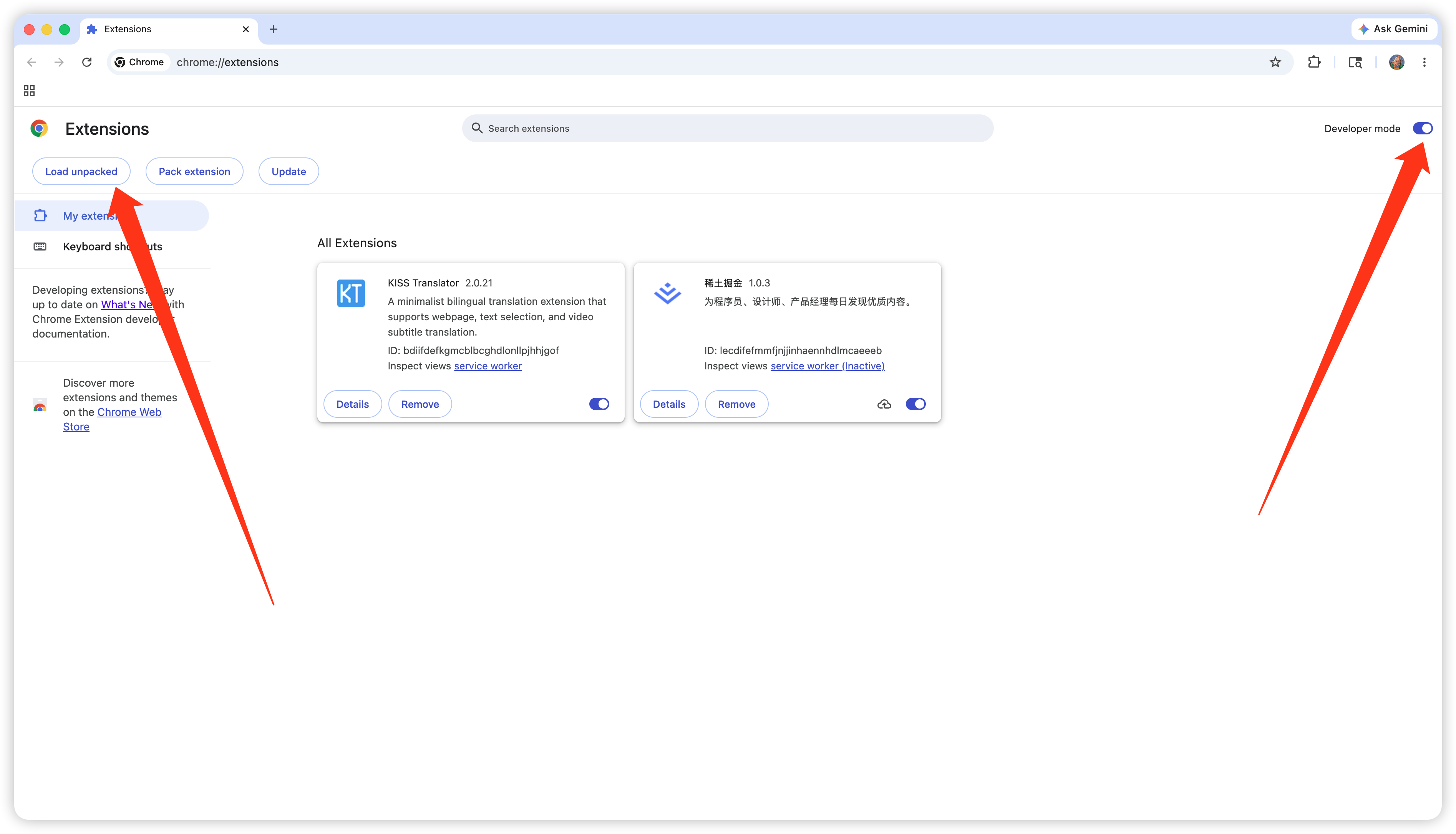
- Click Load unpacked and select the
ch-chrome-tk-pluginsfolder; - If it fails: open
chrome://flags/#extensions-on-chrome-urls, set it to Enabled, restart the browser and retry. Edge shares the same engine and behaves the same way.
3.2 Installing in Ziniao
- Log in to Ziniao with the Boss account, go to the Ziniao open platform and create a seller custom plugin (see the Ziniao docs), uploading the
ch-chrome-tk-plugins.zipyou downloaded; - Then go to Ziniao browser management → App management, open the plugin's Configure and use Assign accounts to grant it to every store account that needs it (see the plugin docs);
- In Ziniao's Accounts list, pick the store account → Account details → Browser environment → Configure → Advanced → set Port protection to on, port
9527, then save;
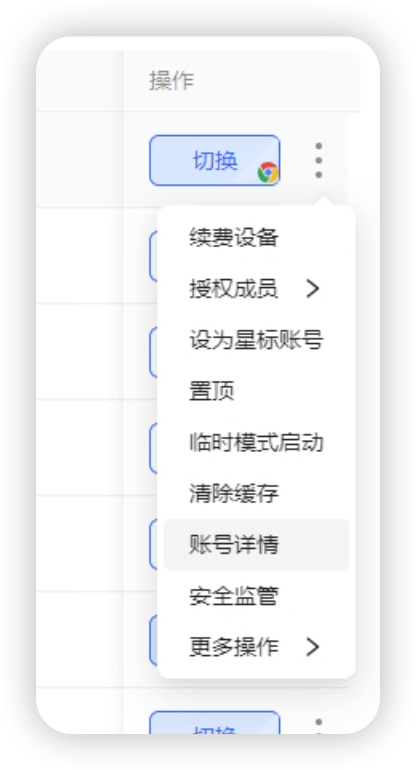
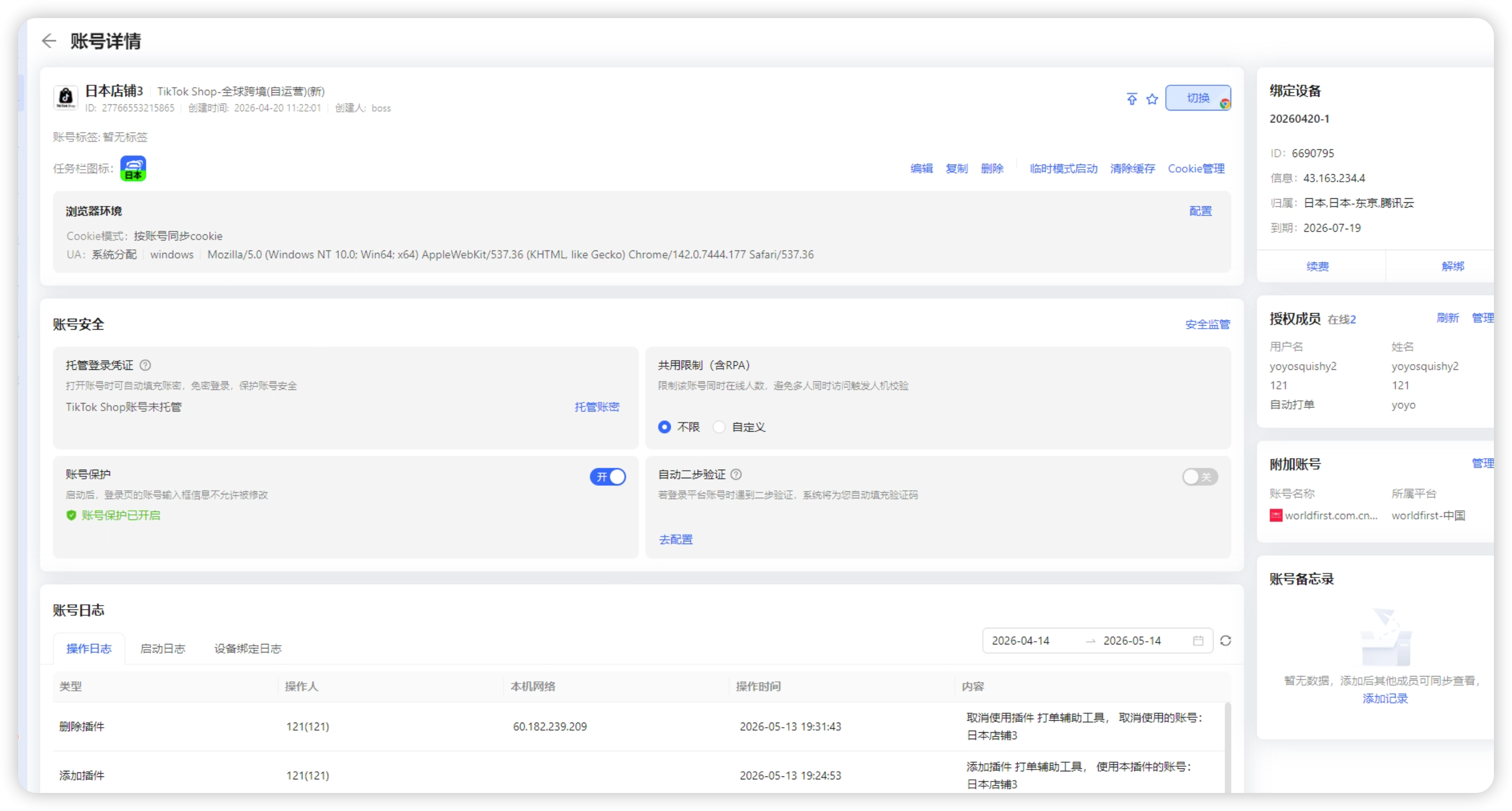
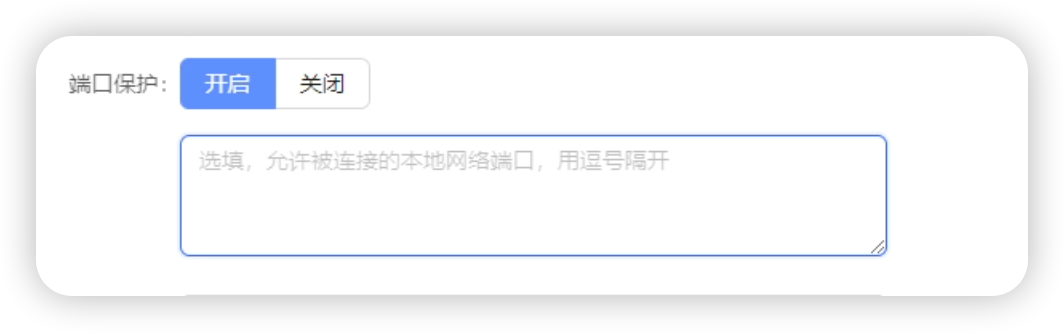
- Log in to the configured Ziniao account, open the store, and the helper extension appears in the extension list.
3.3 Configuration (same in every browser)
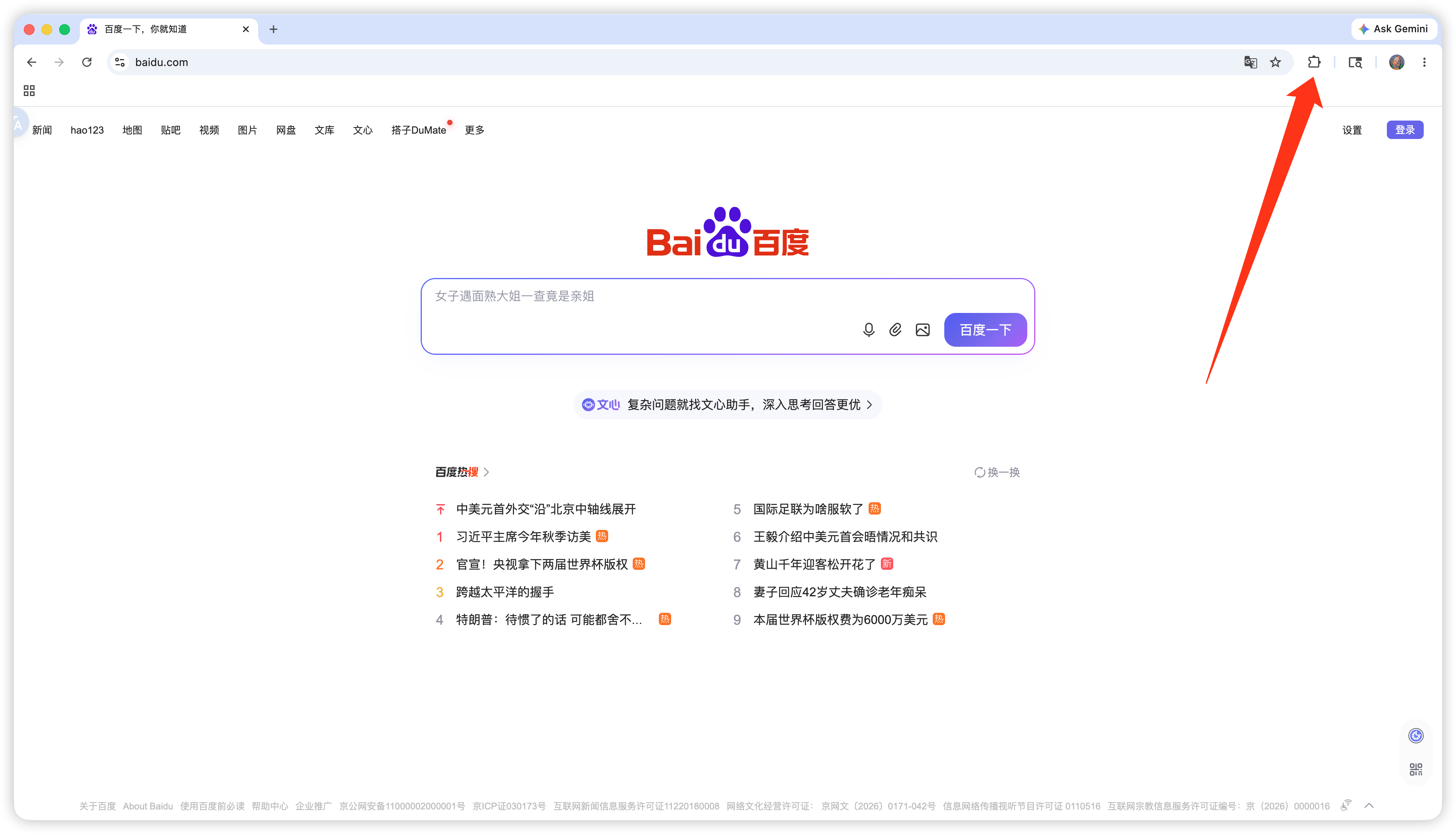
- Click the extension icon at the right end of the address bar and open the helper;
- The WebSocket address can stay empty; in Store ID enter the ID of the store currently logged in on this browser (one per line, several allowed). Copy it from the client under Stores → Settings → Web authorization login → Extensions;
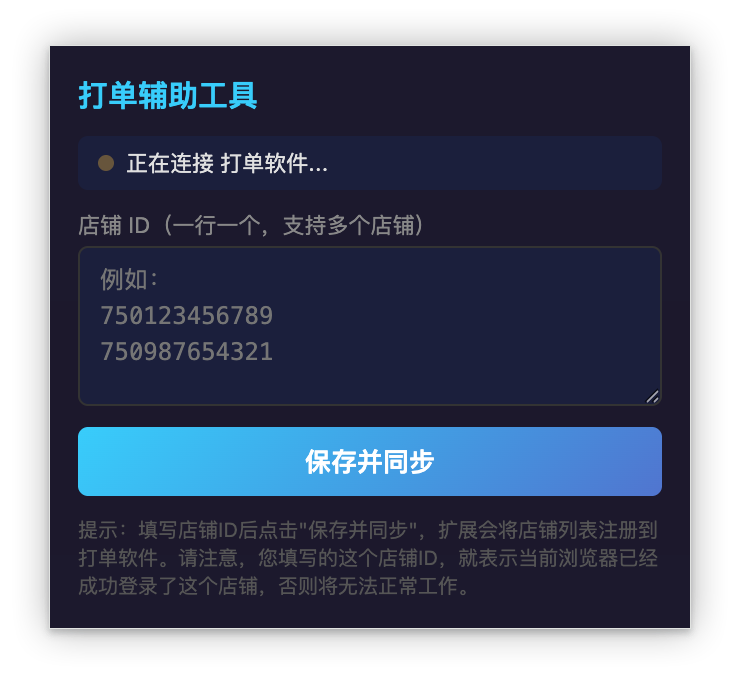
- Click Save and sync;
- Back in the same place in the client, enter the store's admin domain, e.g.
https://seller-jp.tiktok.comorhttps://seller.tiktokshopglobalselling.com(no trailing slash); - Wait for Connected, then print an order to test the nickname.
If the nickname still does not print
- The login state dropped. All three methods depend on a signed-in browser; a nickname that disappears is usually just a logged-out session — sign in again;
- Trailing slash in the domain. One extra
/at the end of the admin domain stops the connection — remove it and save; - Wrong store ID. It must be the store ID, not the store name and not the admin domain;
- Template has no nickname field. The data can arrive while the template never references it — check that the template includes the buyer nickname field.
 Or email us: